
Stores have physical limits: how much stock they can hold, and how many units they can receive in one delivery. Before 05-11-2026 these limits already existed in the platform, but they had no screen and could only be managed through Data Upload. Network Constraints makes them visible in one place.
The section has two tabs:
|
|
Constraint |
What it limits |
Where the data comes from |
|
Store Capacities
|
Max store stock (Max Stock) |
Total stock a store can hold |
Store master daily feed |
|
Max store stock by product category (Max Stock by Category) |
Stock a store can hold for one product hierarchy level |
Edited on screen or with Data Import |
|
|
Constraint |
What it limits |
Where the data comes from |
|
Store Operations
|
Min inbound (Min Order) |
Minimum units per shipment |
Store master daily feed |
|
Max inbound (Max Order) |
Maximum units per shipment |
Store master daily feed |
💡 Nothing in your configuration changes with introduction of this page. What you see on screen is what was already set up in your tenant. What you see on screen is what was already set up in your tenant. A value on screen only affects your results when that constraint is switched on in Settings (see below).
Store Capacities
Store Capacities sets how much stock a store can hold, either in total or per product category.
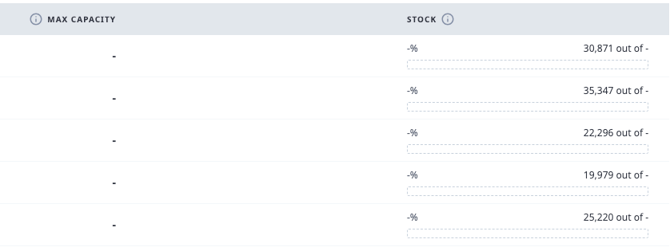
Max store stock (Max Stock)
The maximum total stock a store can hold. It is checked against the store's on-hand stock plus stock in transit.
- Each store shows a progress bar with current stock against its capacity, and an over-capacity alert when stock is above the limit.
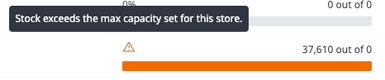
- The value comes from your store master daily feed, so it can't be edited on screen. To change it, update it in the feed your IT team sends to Nextail.
- Can be switched on separately for FA and Replenishment.
Max store stock by product category (Max Stock by Category)
The maximum stock a store can hold for one level of your product hierarchy, for example 400 units of Knitwear in store 0123.
- Categories must be product hierarchy levels from your Product Master: Season, Section, Family, or your own levels such as Division, Subdivision, Category, Subcategory, Class or Subclass.
- ⚠️ Manually created groups can't be used. They can be edited or deleted at any time, which could leave capacities pointing to the wrong products.
- This is the only constraint you can edit in the platform: expand a store to edit it on screen, or use Data Import for bulk changes
- Can be switched on separately for FA and Replenishment.
Store Operations
Store Operations sets how many units a store can receive in a single shipment. Both values come from your store master daily feed and can be switched on separately for FA and Replenishment.
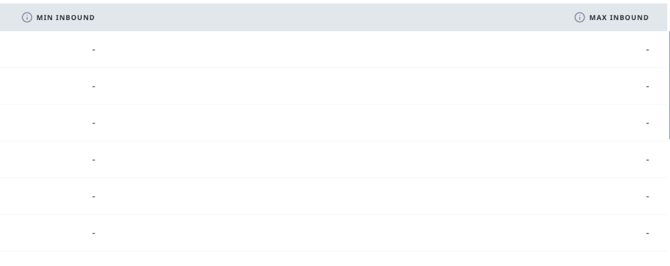
- Min inbound (Min Order): the minimum number of units per shipment for a delivery to be operationally viable. Shipments below this number are not sent.
- Max inbound (Max Order): the maximum number of units a store can receive in one shipment, whatever its origin. This keeps store teams from being overwhelmed by a single delivery.
💡 To change Min inbound or Max inbound, update the value in your store master feed. If you're not sure where it comes from, contact your Customer Value Manager.
How the engine applies constraintsWhen a constraint is active, the engine keeps the units with the highest revenue potential that fit within the limit, instead of simply cutting the last units in the queue.
- The engine first calculates what each store needs without any constraint.
- If a proposal breaks an active limit, it ranks each unit by expected revenue: its selling price weighted by how likely it is to sell in that store.
- It secures Store Requests and Min Displays first, then removes the units with the lowest expected revenue until the proposal fits.
- It keeps pack and prepack structures whole: units are removed in full packs, never split.
- Units removed from one store can be sent to another store in the same calculation, instead of going back to stock.
For Max store stock, the engine compares the store's stock (on hand plus in transit) and the new proposal with the capacity. It also subtracts the sales it expects before the shipment arrives (lead time), which frees up space.
Settings: which constraints are active
The Settings panel shows, for each of the four constraints, whether it is switched on for First Allocation and for Replenishment. Each constraint and module is independent: for example, Max Stock can be on for Replenishment and off for FA.
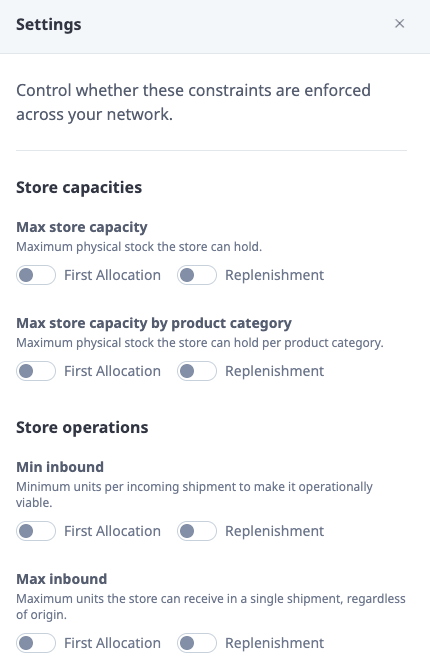
- As of 05-11-2026, only Nextail staff can switch constraints on or off. You can view the settings, but not change them.
- To activate, deactivate or adjust a constraint, contact your Customer Value Manager or Customer Experience team.
- A Client Admin role that lets you manage activation yourself is planned.
⚠️ A value on the Store Capacities or Store Operations tab is only applied when that constraint is on in Settings for the module you're running. Many tenants have saved values that are not active.
How to manage category capacitiesYou can create, edit and delete Max Stock by Category values on screen (one store at a time) or with Data Import (many stores at once). The other three constraints come from the store master feed and can't be edited here.
On screen
- Go to "Master Data → Network Constraints" and open the Store Capacities tab.
- Find the store and expand its row to see its category capacities.

- Create: Click "New category capacity" button to create new entry.

On-screen tab will require you to enter store code and a category, than enter the desired quantity: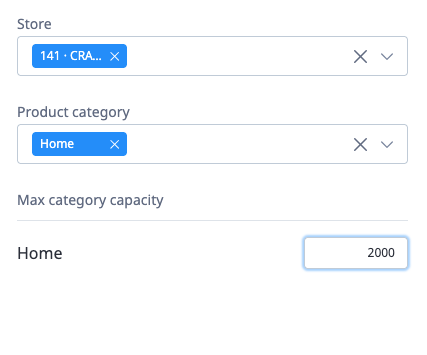
- Edit/Delete change the units of an existing capacity or delete the line by selecting it

With Data Import
- On the Store Capacities tab, click Data Import.
- Download the latest template from the side panel. It includes field-by-field instructions.
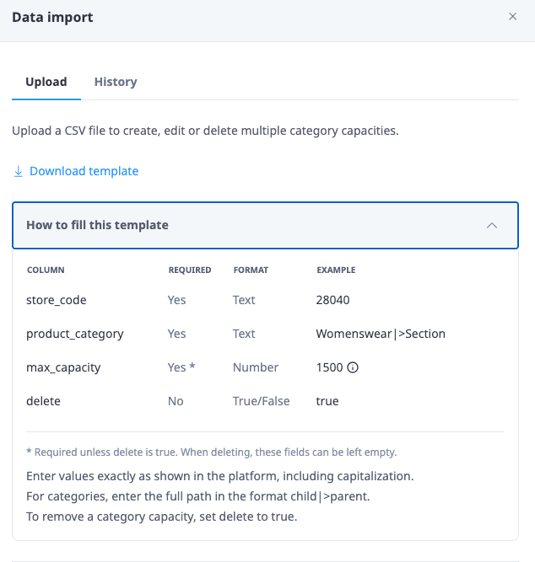
- Fill in one row per store and category. One file can hold creates, edits and deletes.
- Upload the CSV file. Results appear in the panel, and every upload is listed in Import History.
- If a row fails, check the error in Import History, fix the file and upload it again.
Examples
Example 1: Max store stock in Replenishment
Store 0123 has a Max store stock of 22,000 units, active for Replenishment.
|
Units |
|
|
Store stock (on hand + in transit) |
20,000 |
|
Expected sales before the shipment arrives |
500 |
|
Space available (22,000 − 20,000 + 500) |
2,500 |
|
Replenishment proposal without constraints |
3,000 |
|
Units the engine removes |
500 |
The engine removes the 500 units with the lowest expected revenue, in whole packs, and keeps Store Requests and Min Displays. Removed units can go to other stores in the same scenario. If expected sales before arrival were 1,000 units or more, nothing would be removed.
Example 2: Min and Max inbound in First Allocation
Store 0456 has Min inbound = 50 and Max inbound = 400, both active for FA.
- Proposal of 30 units: below the minimum, so the shipment is not sent.
- Proposal of 520 units: above the maximum, so the engine keeps the 400 units with the highest expected revenue. With packs of 6, the final shipment can land slightly under 400, because packs are never split.
- Proposal of 250 units: within both limits, so it's sent as proposed.
FAQ
Can I use a manual group for a category capacity? No. Since 05-11-2026 only product hierarchy levels are accepted. Capacities that were set on manual groups were not active and were removed on 05-11-2026. If you relied on one, your Customer Value Manager will help you set it up again on the right hierarchy level.
I don't recognise some of the data on screen. Where does it come from? These constraints existed before 05-11-2026, but had no screen. Some values may be old tests or may have been set by former team members. Let your Customer Value Manager know before changing anything, and we'll review it with you.
I can see a value, but my results don't respect it. Why? Check Settings. A constraint only applies when it's switched on for the module you're running (FA or Replenishment).
Why can't I edit Max Stock, Min inbound or Max inbound? They come from your store master daily feed. Update them in the feed; your IT team or Customer Value Manager can help you find it.
Two scenarios together sent more than the store's capacity. Why? Each scenario and each module checks constraints on its own. Two Replenishment scenarios running at the same time (e.g. Womenswear and Menswear), or an FA and a Replenishment scenario, can't see each other's proposals. Each can fill up to the full limit, so together they can exceed it.
Why does the engine leave more free space than I expected? The capacity released during lead time only counts sales of products in the scenario scope. Sales of other products are not counted yet, so available capacity can be underestimated.
Some Display Conditions were not met. Why? When constraints are active, some Display Conditions may not be met if both can't be respected at once. See Display Conditions.
Does Store Transfers use Network Constraints? No. Store Transfers has its own limits, described in Capacity restrictions.
