What are display conditions? (previously known as Visual Rules)
Display Conditions (previously known as Visual rules) are a tool to guarantee that products are displayed correctly in stores, maintaining both brand representation and product availability. This parameter ensures that products are displayed in stores according to specific minimum requirements in terms of units and size curve distribution.
Display Conditions take into account two main factors:
- Minimum Units: The minimum number of units required for a product to be displayed.
- Minimum Size Run Coverage % (Previously known as Size Curve Weight): The proportion of each size that must be represented in-store, based on historical sales data for each family, store, and size-set.
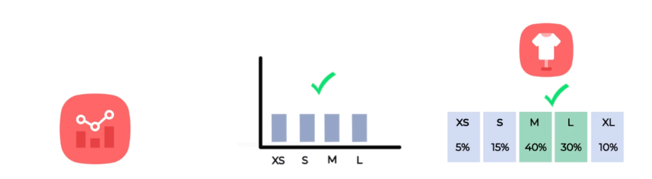
(In case you don’t remember how these weights are calculated in Nextail, jump to the “Size Curves” article before configuring your Display Conditions).
Why does this parameter combine both factors (min units & min weight)?
Let’s imagine a case of a low rotation product without much demand.
If the user was only setting a minimum of 5 units, the system could send, for example, 5 XLs only to fulfill these display conditions (we still haven’t met any store manager who would be happy about that!)
As a consequence, by adding the second requirement, you ensure that when sending those 5 units, they make sense from a customer point of view - as several sizes would be represented in the shop floor.
For example, let’s imagine that:
- This is the size curve of a trouser in a given store:

- These are the display conditions configured for the Family Trousers:
→ Min units displayed: 5
→ Min weight displayed: 45%
With both rules configured, instead of replenishing 5 units of size XL (that would represent no more than 6% of the curve!), the system would be incentivised to send any of the following combination of sizes:
- Size XS, S, L (48%)
- Size XS, M (45%)
- Size M, S (50%)
- Size XXS, XS, L, XL, XXL (50%)
- …
When is it useful to configure display conditions (previously known as Visual Rules)?
Before configuring display conditions in Nextail, it is important to ask yourself:
- “Does my business actually have this concept of minimum representation on the shop floor?”
- “If yes, do the store managers actually remove the items from the shop floor when running below that minimum?”
If the answer is no, our initial advice would be not to set them up - as they can work as a restriction for the algorithm where certain conditions need to be fulfilled in order for the replenishment to be triggered (the system understands not meeting the display conditions means removing the product from the shop floor → which therefore translates into the demand forecast being zero).
Besides, by not configuring display conditions, you allow the algorithm decisions to be purely demand-driven (which means a more optimal distribution of your stock throughout the season).
If you are interested in setting display conditions, continue reading the next section, where we will explain some important considerations to bear in mind when choosing your rules.
Critical Considerations When Setting display conditions (previously known as Visual Rules)
Risk of Under-Replenishment:
One of the most important aspects to understand when using this parameter is that, if display conditions cannot be met, the system assumes the product won’t be displayed in-store, and therefore its demand will be set to zero 
This can lead to situations where no stock is sent even if there’s potential demand simply because the display conditions were too restrictive.
For example, if you set a high minimum number of units or a very high Minimum Size Run Coverage %, and the warehouse stock is too low to even make it possible to meet these requirements, the system may decide not to replenish the store at all (any size). As a result, you might miss out on sales opportunities for that product.
Risk of Over-Replenishment:
Conversely, display conditions can also lead to overstocking in certain situations.
If, to meet the display condition, the system proposes sending additional units of sizes with very low demand (for instance size XL with little historical sales), you may end up with stock that is unlikely to get sold… simply to comply with the display conditions configured.
Based on the explanations above, let’s see how display conditions can influence the replenishment decisions of the system with a numerical example.
How can display conditions (previously known as visual rules) be configured?
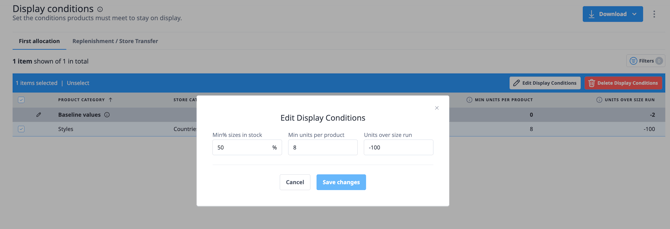
Display Conditions can be managed directly on-screen, both individually and in bulk. Users no longer need to rely exclusively on Data Upload files to create, edit, or remove records.
On-screen management
To access Display Conditions, go to "Master Data → Display Conditions". From there you can:
- Create new records directly on-screen
- Edit existing records individually or in bulk
- Remove records individually or in bulk
- Filter records by scope using the filtering panel, including multi-selection filtering
- Edit baseline values directly on-screen
- Download your current configuration in CSV or XLSX format
⚠️ The interface will show on-screen alerts if any categories linked to your Display Conditions have been emptied or deleted, so you can act on them promptly.
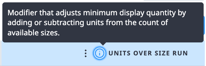
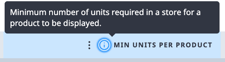
💡 Tooltips are available next to the key parameters — Minimum Units, Minimum Size Run Coverage %, and Units over Size Run — to help you understand their impact before configuring them.
Configuration via Data Upload
If preferred, Display Conditions can still be configured through a Data Upload using the following template:
|
StoreCategoryName |
ProductCategoryName |
MinSizesPercentage |
MinUnitsPerProduct |
UnitsOverSizeNumber |
|
Write here… |
Write here… |
Write here… |
Write here… |
Write here… |
- ProductCategoryName: Copy-paste from the platform the name of the Product Category for which you want this visual rule to apply (Open Stores, Channel, Country, Area, Store Type, Store Size, Distribution Type…)
- StoreCategoryName: Copy-paste from the platform the name of the Store Category for which you want this visual rule to apply (Section, Family, Subfamily, Range group, DPT…)
- Minimum Size Run Coverage % (
MinSizesPercentage): Minimum size weight that needs to be represented in-store for the product to be available. - Minimum Units (
MinUnitsPerProduct): Minimum number of units that need to be in-store for the product to be available. - Units over Size Run (
UnitsOverSizeNumber): If instead of a fixed value you'd rather configure the minimum units depending on the size set length of each product, use this field. For example, with a value of "-3":- For a product with 10 sizes → minimum of 7 units (10 - 3)
- For a product with 5 sizes → minimum of 2 units (5 - 3)
- When both Minimum Units and Units over Size Run are configured, the highest value prevails. Setting "-100" in Units over Size Run ensures Minimum Units always takes priority.
Once your template is ready, go to "Daily Data → Data Upload → Display Conditions" and upload it.
There are endless options to configure your display conditions, always depending on which business cases you are trying to cover with them.
We could have a universal rule (that applies to all products in all stores) or different rules applying to different categories of products and stores. For example;
- In my business only Denim has a hard rule that states that unless 10 units of several sizes are displayed, the product will be taken to the stockroom:
|
StoreCategoryName |
ProductCategoryName |
MinSizesPercentage |
MinUnitsPerProduct |
UnitsOverSizeNumber |
|
Retail Stores |
Denim |
30% |
10 |
-100 |
- In my business only Flagships have this hard rule where unless 5 units across several core sizes are displayed, the item will be taken to the stockroom:
|
StoreCategoryName |
ProductCategoryName |
MinSizesPercentage |
MinUnitsPerProduct |
UnitsOverSizeNumber |
|
Flagship |
All Families |
50% |
5 |
-100 |
- In my business it is important to maintain a minimum of 4 units across different sizes in all families and types of stores:
|
StoreCategoryName |
ProductCategoryName |
MinSizesPercentage |
MinUnitsPerProduct |
UnitsOverSizeNumber |
|
All Stores |
All Families |
25% |
4 |
-100 |
- In my business, only Full Price stores take stock to the stockroom when none of the core sizes are available, while outlets display everything they have regardless of the size:
|
StoreCategoryName |
ProductCategoryName |
MinSizesPercentage |
MinUnitsPerProduct |
UnitsOverSizeNumber |
|
Full Price Stores |
All Families |
40% |
- |
-100 |
Best Practice: It's advisable to use automatic categories when setting display conditions. This ensures that any changes in your network, such as the introduction of new stores or products, are automatically included without requiring manual updates to your rules.
Once these are configured, they operate automatically. In other words, this is a one-time setup at category level - as you saw on the examples above (e.g., by product family or store group) -, and applies across all products and stores within the categories used.
How can the user review which Display Conditions (previously known as Visual Rules) are configured at the moment?
There are two ways of reviewing current configuration:
- On-screen review: Go to "Master Data → Display Conditions" to see all Display Conditions currently configured. From this view you can also filter by scope using the filtering panel (including multi-selection), edit baseline values, and download the full list in CSV or XLSX format.
- Product-store level review: If you want to validate which Display Conditions have been applied to a particular product-store combination in a given scenario, you can do so by accessing the replenishment screens.
What happens when a group of products / stores have been included in several Display Conditions?
The rule that prevails is the one with the lowest number of store-product combinations, simulating a hierarchical approach - although not strictly. Therefore, it would normally be the one configured at the most granular level.
How to delete Display Conditions (previously known as Visual Rules)?
There are two ways to delete Display Conditions:
On-screen deletion
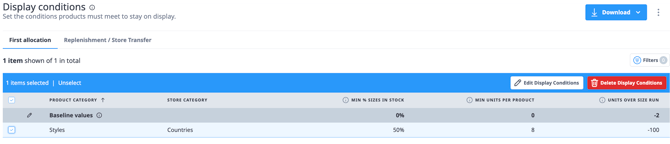
Go to "Master Data → Display Conditions", select the record or records you want to remove (individually or in bulk using multi-selection), and delete them directly from the interface.
Via Data Upload
If preferred, you can also delete Display Conditions through a Data Upload by setting the value for all 3 fields — Minimum Size Run Coverage % (MinSizesPercentage), Minimum Units (MinUnitsPerProduct), and Units over Size Run (UnitsOverSizeNumber) — to 0. This upload will trigger a removal for that record/combination.
For Replenishment:

For First Allocation:

You can also find template for data uploads here.
Conclusion
Display Conditions (previously known as Visual Rules) are a powerful tool to ensure that your products are displayed correctly in stores, maintaining both brand representation and product availability. However, they must be managed carefully. Set too restrictive conditions, and you risk missing out on sales. Set conditions without considering demand, and you might end up with excess stock. The key is to strike a balance, using Display Conditions to support your merchandising strategy while remaining flexible to real-time sales performance and stock availability.
