
As part of an ongoing effort to standardize terminology across the Nextail platform, Calendar Plans have been renamed to Picking Schedules. This update introduces a more structured management experience, clearer terminology, and new tools to help you manage store-level picking operations more efficiently. All changes are reflected throughout the product interface.
New Picking Schedules Overview Page
A new primary page now centralizes all your Picking Schedules in one place. From this page you can:
- View all schedules with their associated stores, picking days, and picking groups
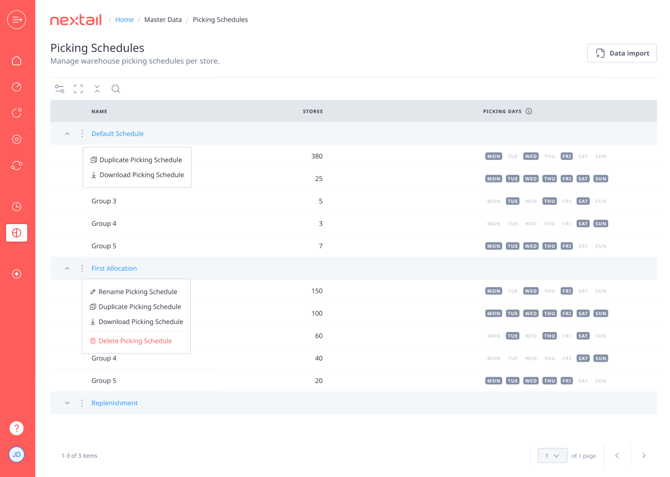
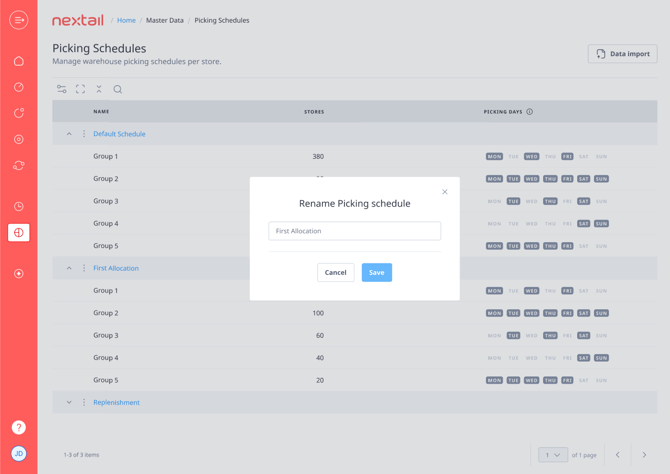
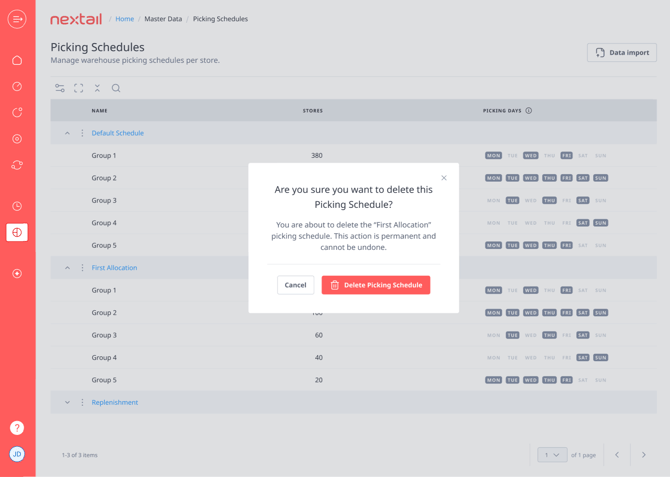
- Create, rename, and delete schedules
- Navigate directly to store-level picking management for any schedule
- Download schedule data
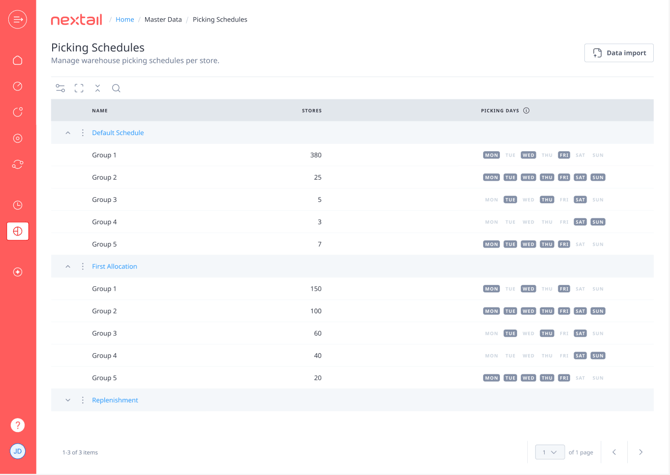
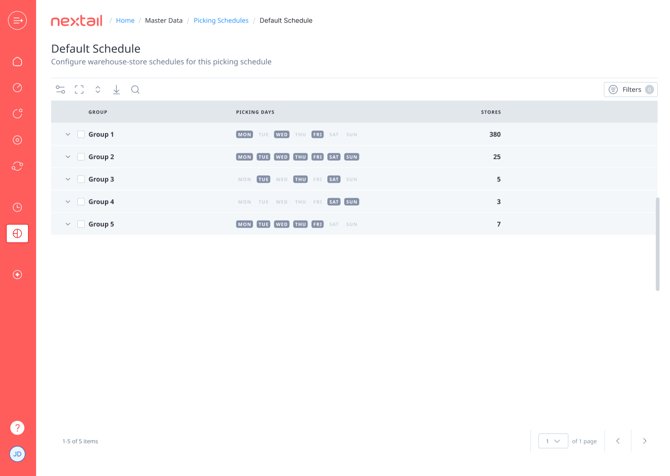
Default Picking Schedule
Note: The default Picking Schedule cannot be renamed or deleted.
Refreshed Store-Level Management
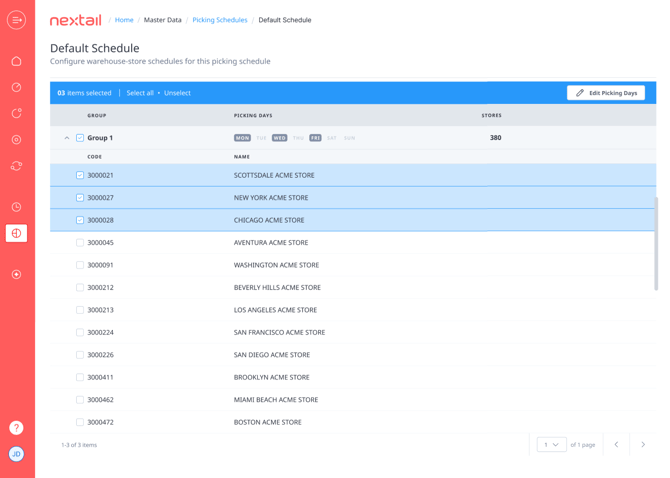
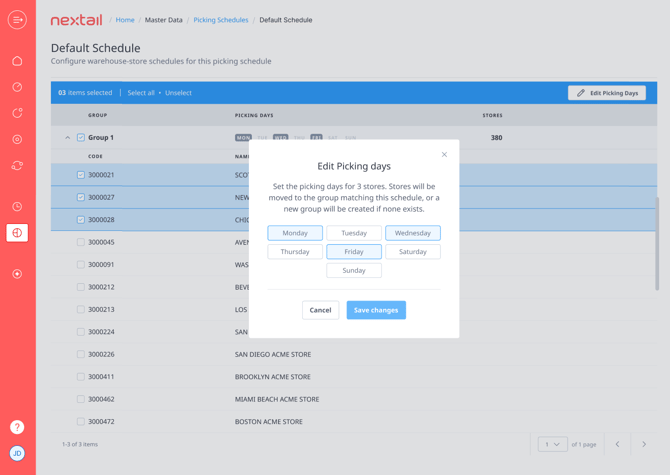
The store-level picking management experience is still available as a secondary page, now with a refreshed UI/UX. You can manage individual stores or make bulk updates directly within the workflow.
Bulk updates via Data Import
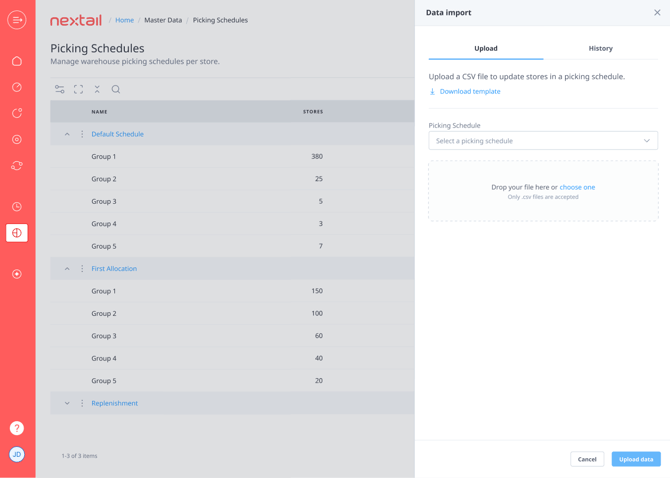
To update store picking data in bulk, go to "Master Data → Picking Schedules" and click Data Import. The side panel lets you download the latest template, read the field instructions and upload your CSV file:
-
Drag and drop your CSV file into the panel; there is no need to go to a separate upload page
-
Imports are processed within seconds
-
The store name field is no longer required in the template; only the store code is needed
For the full step-by-step guide, see On-site Data Imports & Import History.
Import History
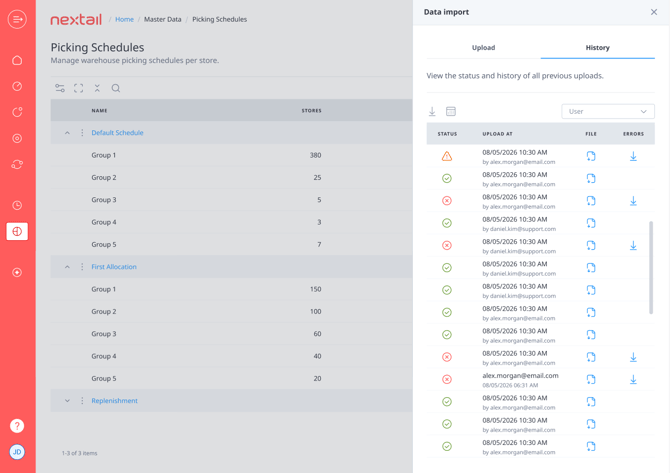
The Import History tab, inside the Data Import panel, gives you full visibility into your bulk imports. For each import you can see:
-
File name and upload timestamp
-
Execution status
-
Any errors encountered
-
The user who performed the upload
Note: The available history period may vary depending on your product plan.
Need Help?
If you have any questions about Picking Schedules or need assistance with your configuration, please contact your Nextail account manager or see How can I request help?
