
DIO Monitor (formerly Monitoring Tool (Daily Jobs)) gives you visibility into your daily Data Ingestion & Orchestration (DIO) jobs. You can use it to check:
- The status of each daily DIO job.
- The data ingested, including the file of ignored lines.
- The warehouse cut-off set in the platform.
- The emails that receive alert notifications.
- How long data ingestion and replenishment executions take.
DIO Monitor is view-only.
Access DIO Monitor:
- Log in to your Nextail account.
- Open the "Admin" menu.
- Click "DIO Monitor".
Note: The "Admin" menu is only available for accounts on the DIO architecture. If your account still runs on the legacy Daily architecture, you won't see it until your account is migrated. Contact your Nextail team to confirm your migration date.
Main page
The main page lists the daily DIO jobs activated for your account. For each job, you can see:
- Status
- Number of linked replenishment executions (Scheduled Runs)
- Scheduled time
- Completed time
- Expected duration
- Duration

Note: DIO Monitor only shows DIO jobs (data ingestion and automated replenishment). Other jobs, such as size curves, photo crawler, or BI refresh, are not shown.
Filters and refresh:
- Date: select any day within the last 10 days.
- Status: select one or more statuses.
- Auto-refresh: off by default. You can set it to every 1, 5, 15, or 30 minutes, or click "Refresh" at any time.
Job statuses:
- Scheduled
- Scheduled but delayed
- Running
- Running risk late
- Running late
- Failed
- Waiting for Retry (only if this feature is activated for your account)
- Completed
- Completed late
How expected times are calculated:
- Expected duration: the median duration of that job over the last two months.
- Expected completion: the DIO start time plus the expected duration.
Click a job name to open its details page. Here you can see when the job was scheduled, started, and completed.
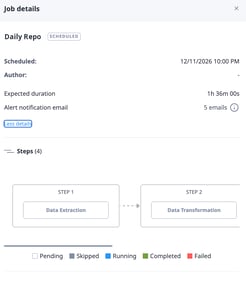
[Screenshot: completed job]
Click "More details" to see:
- Elapsed time vs. expected time.
- Deadline: the warehouse cut-off agreed with your company.
- Alert notifications: the emails that receive alerts about this job.
To change the deadline or the alert emails, contact your Customer Success Manager.
Execution steps
Each DIO job runs through these steps:
- Data extraction
- Data transformation (data ingestion)
- Forecast and business indicators
- Replenishment executions
- Send waybills
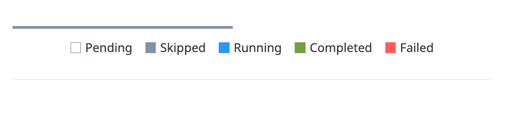
Each step is colour-coded by status:
|
Colour |
Status |
|---|---|
|
White |
Pending |
|
Grey |
Skipped |
|
Blue |
Running |
|
Green |
Completed |
|
Red |
Failed |
Data transformation
This section lists every data type expected for the job. For each one, you can see:
- Processed lines
- Ignored lines, with a link to download them
- Processed sources, with a link to download the ingested file
Depending on the data type, you can also see the min and max date, total dates, and the number of SKUs, stores, or warehouses.
Data types: Product Master, Product Master Categorization, Store Master, Store Master Categorization, Warehouse Stock, Sales, Store Stocks, Linked lines, Pending Orders, Product Purchase, and Transit stocks.
Note: If the Full mode strategy is activated for your account, Warehouse Stock uses the full_mode_by_date setting. Warehouse stock for the dates included in the new file is set to zero before the new data is loaded.
Replenishment executions
This section lists every Scheduled Run linked to the job, with its status colour. For each Scheduled Run, you can see:
- Whether the waybill was sent
- Start time
- Elapsed time vs. expected time
- Completion time
- Number of SKU-stores and product-stores (only for scenarios that are not empty)
FAQs
Can I edit my DIO configuration?
No. DIO Schedule and DIO Monitor are view-only. To request a change, contact your Nextail team.
What is the difference between DIO Schedule and DIO Monitor?
DIO Schedule shows what is configured and when it should run. DIO Monitor shows what actually happened today and in the last 10 days.
